Turn new message alert pop-up on or off in Outlook
A Desktop Alert is a notification that appears on your desktop when you receive a new email message, a meeting request, or a task request. By default, Desktop Alerts are turned on.
The information displayed in a Desktop Alert varies depending on the item that you receive in your Inbox.
- Email message
Displays the name of the sender, the subject, and the first two lines of the message. A Desktop Alert doesn't display the contents of an encrypted or digitally signed message. To view the message, you must open it.
- Meeting request
Displays the sender, subject, date, time, and location of the meeting.
- Task request
Displays the sender, subject, and start date of the assigned task.
Turn alerts on or off for new Outlook
- Open new Outlook
- Under View, select View Settings.
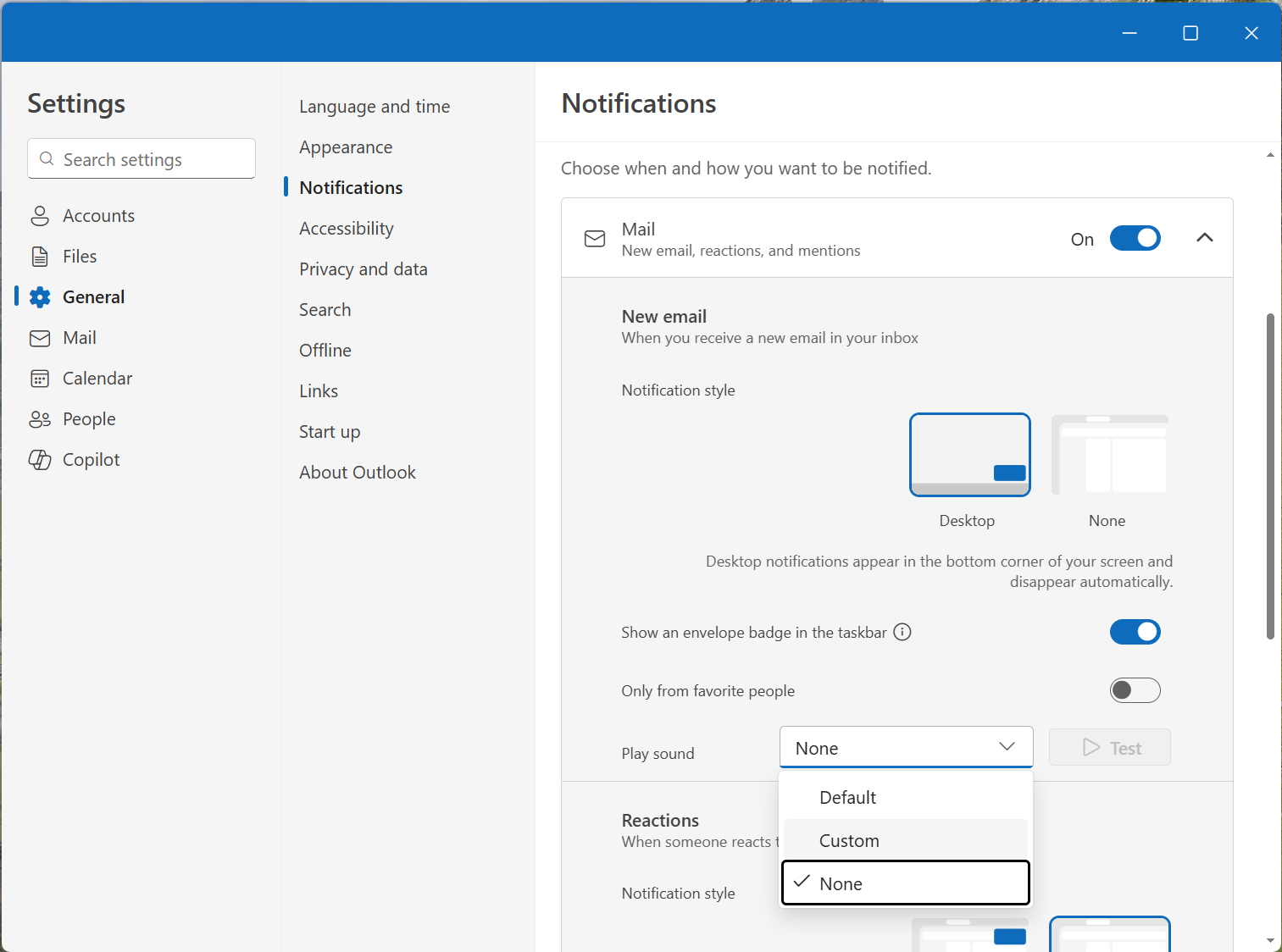
- Select General, then Notifications.
- Under Notify me about, turn the toggle on or off for Mail, Calendar, or Documents.
Customize notification sound
You can now set custom sounds for notifications in new Outlook.
1. Go to Notifications settings following the steps above.
2. Go to Mail and under New Email and Reactions, go to the Play Sound; then select the custom sound of your choice.
3. Go to Calendar and under Event reminders go to the Play Sound; then select the custom sound of your choice.