Add a guest to your team
This action can only be performed by Owners of the Teams group / Listserv
-
Hover over the team name and select More options  > Add member
  .
.
-
Enter the guest's email address. Anyone with a business or consumer email account, such as Outlook, Gmail, or others, can join your team as a guest. Select their email again to confirm.
Note
If you receive a "We didn't find any matches" error while trying to add a guest, your organization doesn't allow guests.
-
Add your guest's name by selecting Add (name) as a guest?. Be sure to do this now—you’ll need the help of an IT admin to do it later.
-
Select Add. Guests will receive a welcome email invitation that includes some information about joining Teams and what the guest experience is like.
Remove someone from a team in Microsoft Teams
If you're a team owner, you can remove someone from your team.
-
Next to the team name, select More options > Manage team  .
.
-
On the next screen, select Members, then locate the team member under Members and guests.
Tip
You can also search for a member by name.
-
Select Remove  on the far right of the name of the person you'd like to remove.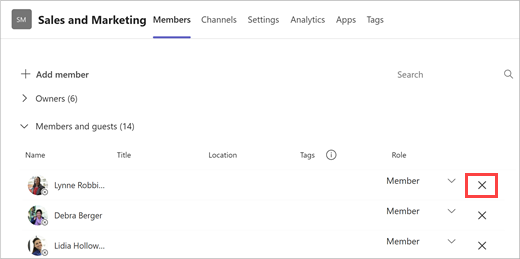
To remove another team owner, first change their role from owner to member, then remove them.
After you remove someone from a team, you can always add them back to the team later on by selecting More options > Add member .