Before you begin, make sure your PC or Mac meets the system requirements.
As a student\employee you have an assigned license.
Sign in to download and install Microsoft 365
Sign in to download Microsoft 365 on a PC
-
Go to m365.cloud.microsoft/apps. If you're not already signed in, select Sign in, and then select the Install apps drop-down.
-
Sign in with the account you associated with this version of Microsoft 365. This account can be a Microsoft account or a work or school account.
-
After signing in, follow the steps that match the type of account you signed in with.
You signed in with a Microsoft account

- From the Microsoft 365 Apps page, select Install apps.
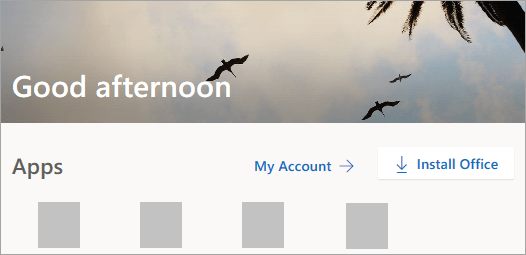
- Select Install (or depending on your version, Install apps>).
You signed in with a work or school account
- From the home page select Install apps. (Or, you might need to select Apps from the left navigation pane, and then select Install apps.)
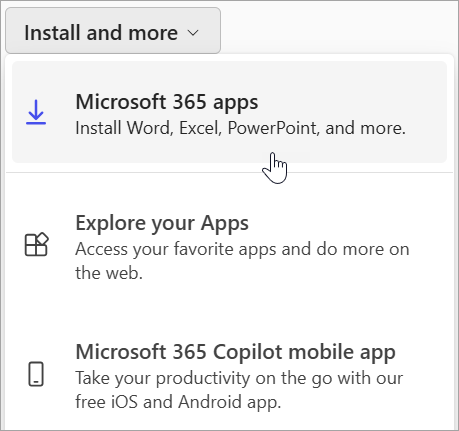
- Select Microsoft 365 apps to begin the installation.
The 64-bit version is installed by default unless Microsoft 365 or Office detects you already have a 32-bit version of Microsoft 365 or Office (or a stand-alone app such as Project or Visio) installed. In this case, the 32-bit version of Microsoft 365 or Office will be installed instead.
To change from a 32-bit version to a 64-bit version or vice versa, you need to uninstall Microsoft 365 first (including any stand-alone Microsoft 365 apps you have such as Project of Visio). Once the uninstall is complete, sign in again to m365.cloud.microsoft/apps and select Install apps. From the Install apps window select the language and version you want (64 or 32-bit), and then select Install. (See Install Visio or Install Project if you need to reinstall those stand-alone apps.)
-
This completes the download of Microsoft 365 to your device. To complete the installation and activation steps, follow the prompts in the following install and activation sections.
Install Microsoft 365 on a PC
- Depending on your browser, select Run (in Microsoft Edge or Internet Explorer), Setup (in Chrome), or Save File (in Firefox).
If you see the User Account Control prompt that says, Do you want to allow this app to make changes to your device? select Yes.
The install begins.
- Your install is finished when you see the phrase, "You're all set! Office is installed now" and an animation plays to show you where to find Microsoft 365 applications on your computer. Select Close.
Installation or sign in issues?
Tip
For help with Microsoft 365 or Office installation issues on a PC, please go to Microsoft 365 troubleshooters and select the Microsoft 365 setup troubleshooter option.
If you're having an installation issue such as Microsoft 365 taking long to install, select the Need help? tab for a list of common issues.
Activate Microsoft 365 on a PC
-
To open an app, select the Start button (lower-left corner of your screen) and type the name of an app, like Word.
-
To open the app, select its icon in the search results.
-
When the app opens, accept the license agreement. Microsoft 365 or Office is activated and ready to use.
Note
The Activation Wizard appears if Microsoft 365 or Office has trouble activating. Complete the steps in the wizard to finish activation.