Body
Turn on Try the new Outlook toggle in your current Outlook app. This option is available with desktop version of Outlook for Microsoft 365, and with the Mail and Calendar app on Windows
Turn on Try the new Outlook
Note
If you're an admin and want to turn this feature off in your organization, see the section below Information for IT admins.
If you're using the Outlook app (Version 2303 Build 16227.20318) installed as part of your Microsoft 365 subscription, or the Mail and Calendar apps included with your Windows 10 or 11 device, you may see the toggle Try the new Outlook in the upper right-hand corner of the app.
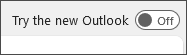
Turn on the toggle and set up your account
-
Turn on the toggle Try the new Outlook. New Outlook will begin downloading.
-
From the Success window, select Switch. This will close the current version of Outlook and New Outlook will sign you in automatically. Select Next to accept the privacy settings.
-
Select an option about sending optional data, and then select Accept. Review the privacy information about connected experiences, and then select Continue.
-
Select Import Settings to bring over your settings from classic Outlook. New Outlook will begin adding your accounts.
Tip
Most accounts are supported in new Outlook. This includes Microsoft accounts such as an Outlook.com or Hotmail.com account, work or school accounts assigned to you by your organization’s admin, third-party accounts such as Gmail, Yahoo!, iCloud, and other third-party accounts connecting through IMAP.
-
The new Outlook for Windows will open once the setup is complete, and you can start reading and sending emails immediately.