Body
Delete a file from OneDrive
- Select OneDrive
 in Teams.
- Select My files
 .
.
- Hover over the file you want to delete and select More actions
 > Delete
  .
.
Your file will be moved to Recycle bin .
Recover a file from OneDrive
- Select OneDrive in Teams.
- Select Recycle bin .
- Find the file you want to recover.
- Right-click the file and select Restore
 .
.
The file will be restored to the last location it was stored.
Delete a file from a channel
-
Under Chat  , go to Channels.
-
Select the channel you want to delete a file from.
-
Select the Shared tab.
-
Find the file you want to delete.
-
Hover over the file and select More options  > Delete
  .
.
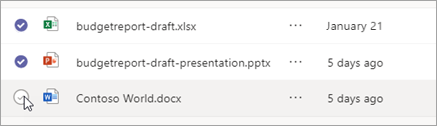
To delete several files at once, hover over each file and select the circled check mark in the left column. Then hover over one of the files and select More options > Delete .
Delete a file from a chat
You can remove a file from a chat message you've already sent by editing the message (see Edit or delete a sent message for instructions).
Recover a deleted channel file
-
Under Chat , go to Channels.
-
Select the channel you want to delete a file from.
-
Select the Sharedtab.
-
Select More options  > Open in SharePoint.
-
In SharePoint, select Recycle bin .
-
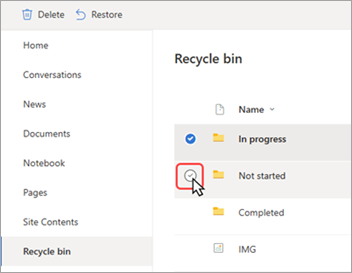
Hover over the file(s) you want to recover and select the circled check mark in the left column of the file's row.
-
Select Restore .
The file will be restored to the last location it was stored.